

Overview
Having a Select All feature is really nice to have in apps that provide ease of use to perform specific actions. In this example, we will add a Select All toggle above the gallery and a toggle within the gallery. Here users will be able to Select/Deselect all rows.
In addition to row selection, we will activate/deactivate records based on the row selection being set to true.
YouTube
Add Toggles
Add a toggle above the gallery and a toggle below the gallery.

For each toggle added, change the size to 40×20 (width x height) and turn Show label to Off. It’s best practice to rename the toggles for easy reference. The toggle above the gallery can be called toggle_SelectAll and the one in the gallery can be called toggle_ItemSelected.

Go to the Default property of toggle_ItemSelected, and change the value to toggle_SelectAll.Value.
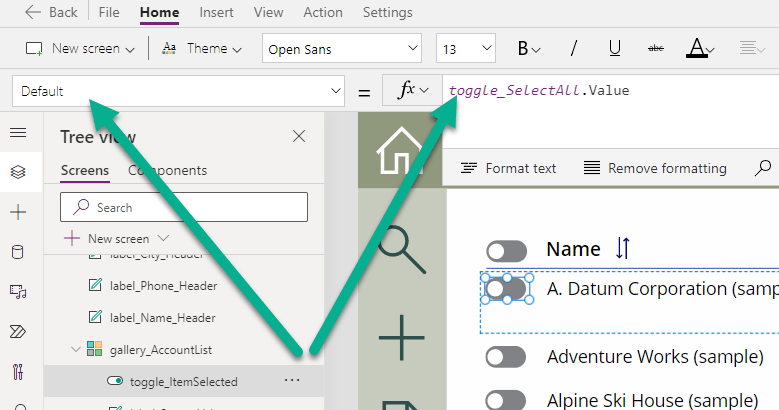
This will update the toggle in all rows of the gallery to the value selected.


Add Icon to Perform Action
In this scenario, we will add an icon above the gallery to deactivate records selected.
Add icon to the following location. Size it appropriate eg) 25×25 pixels.

Update the OnSelect property of the icon.
The following code will loop through all items select in the gallery and update the status to Inactive. As you can see we can reference the toggle value within the gallery.
ForAll(
Filter(gallery_AccountList.AllItems, ThisRecord.toggle_ItemSelect.Value = true) As galItem,
Patch(Accounts, LookUp(Accounts, ThisRecord.Account = galItem.Account),
{
Status: ‘Status (Accounts)’.Inactive
}
);
);
Here we will query the collection to update our gallery with the latest data
ClearCollect(accountList,
AddColumns(Accounts, “expandDesc”, false)
);
Lastly, we will reset the Select All toggle, so all the underlying toggles in the gallery will be set to false.
Reset(toggle_SelectAll);

To apply the Activate button, use a copy of the Deactivate icon and replace the status update to Active.